 AHOPE volunteers
How volunteer sign-in works
Sign in when you arrive. That's it: you don't have to sign out. The page records the time you say you're leaving, and you can change it any time that day.
Forgot to sign in when you got here?
Sign in now. Just under the time you arrived, tap I got here earlier and pick when you came, or tap Other time for any other time. Then tap Sign in.
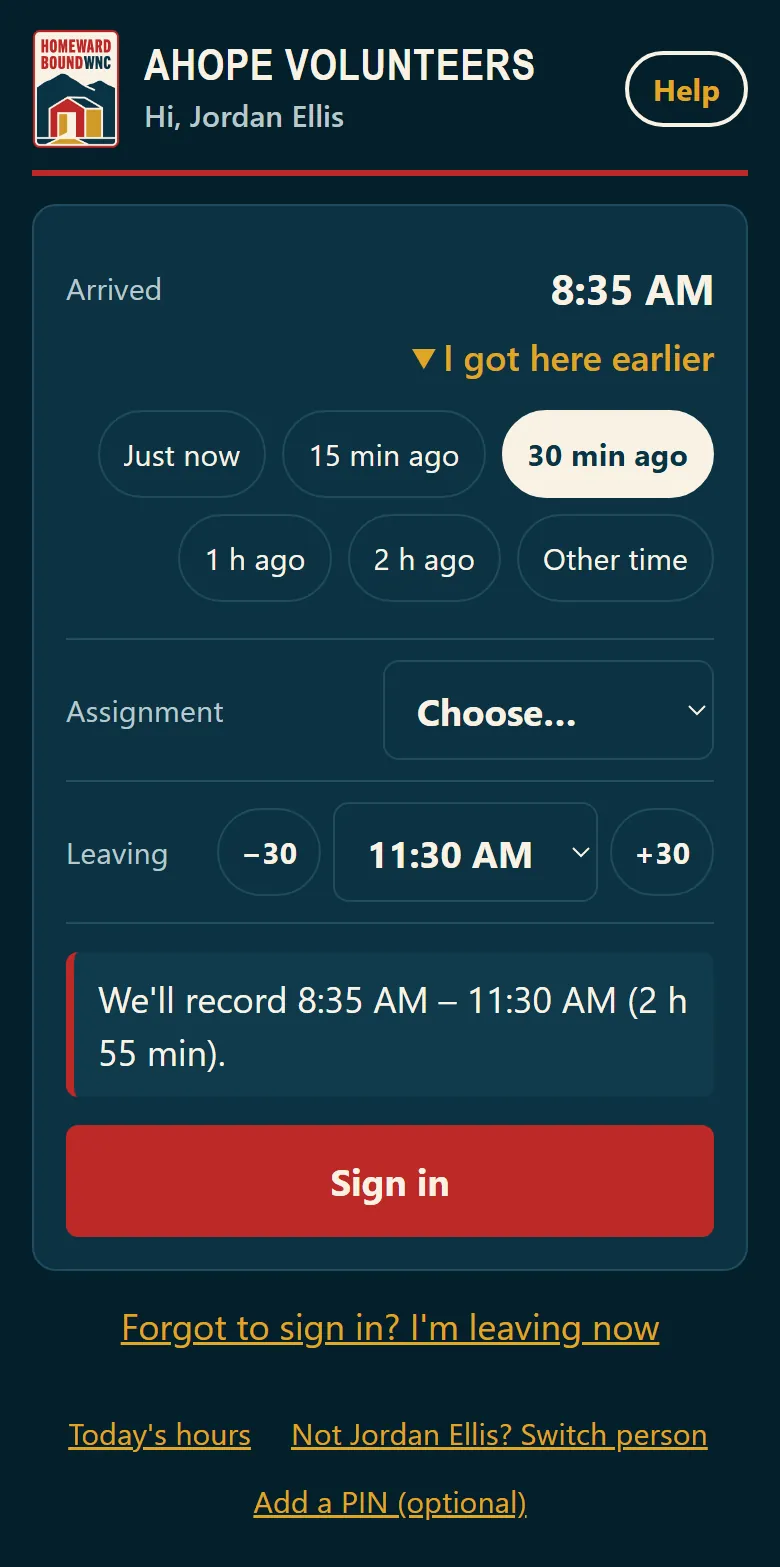
Already signed in? Tap Change times (or Change in Today's hours) and fix when you arrived.
1. The first time
Scan the sign at the door with your phone's Camera app, or go to vol.stepupavl.org. In Name or Staff ID, type your first and last name (a last initial is fine), or your staff ID if you have one. Then tap Continue.
Use the same name every time. "Maria G." and "Maria Garcia" count as two different people.
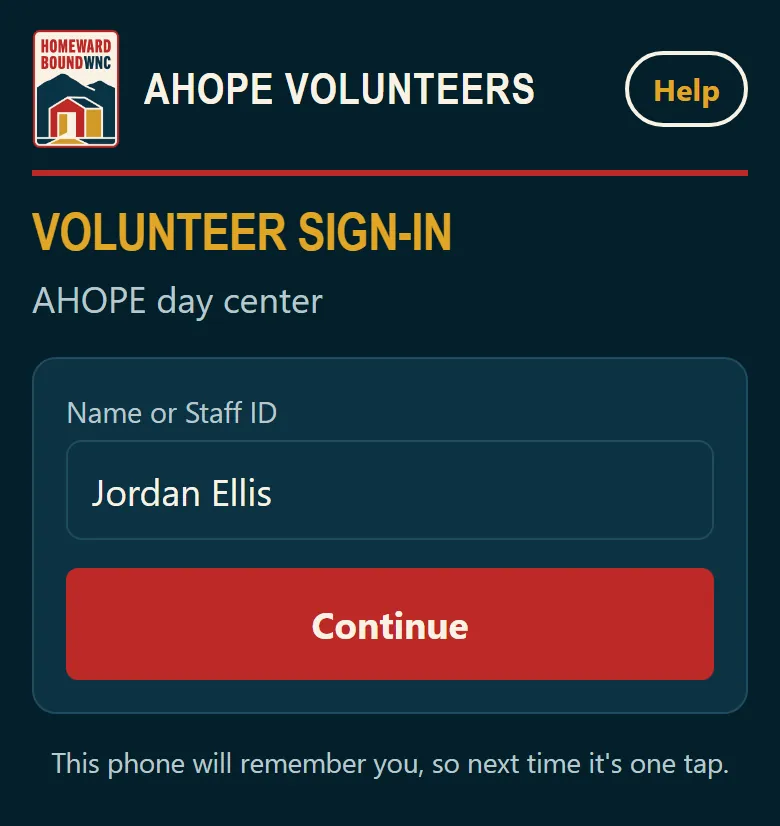
Your phone remembers you after this, so next time it's one tap.
2. Every time you come in
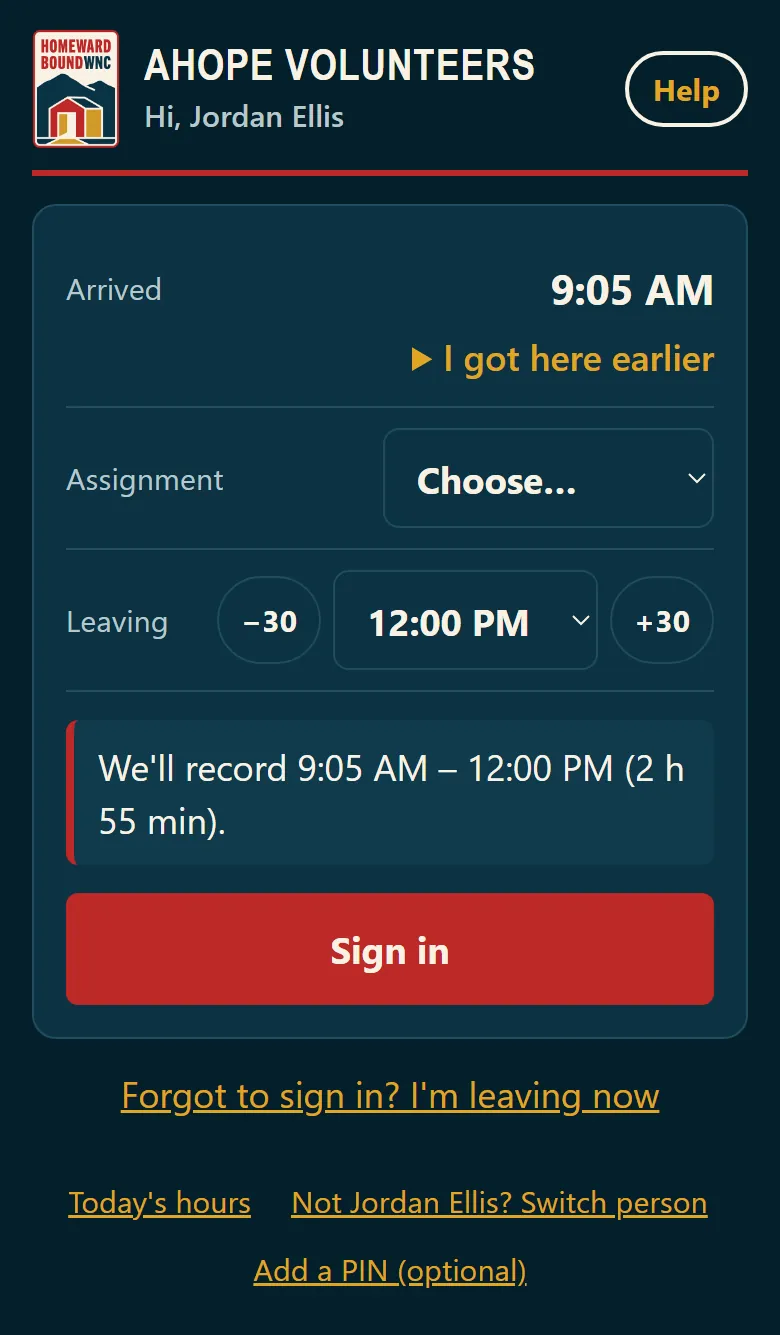
Pick your Assignment: Mailroom, Kitchen, Downstairs, Donation center or Other. Your phone remembers it for next time.
Check the time next to Leaving. It starts at how long you usually stay, to the nearest half hour (3 hours on a new phone). Change it with −30 and +30, or tap the time to pick another. Then tap Sign in.
Got here a while ago? Tap I got here earlier and pick when.
3. While you're here
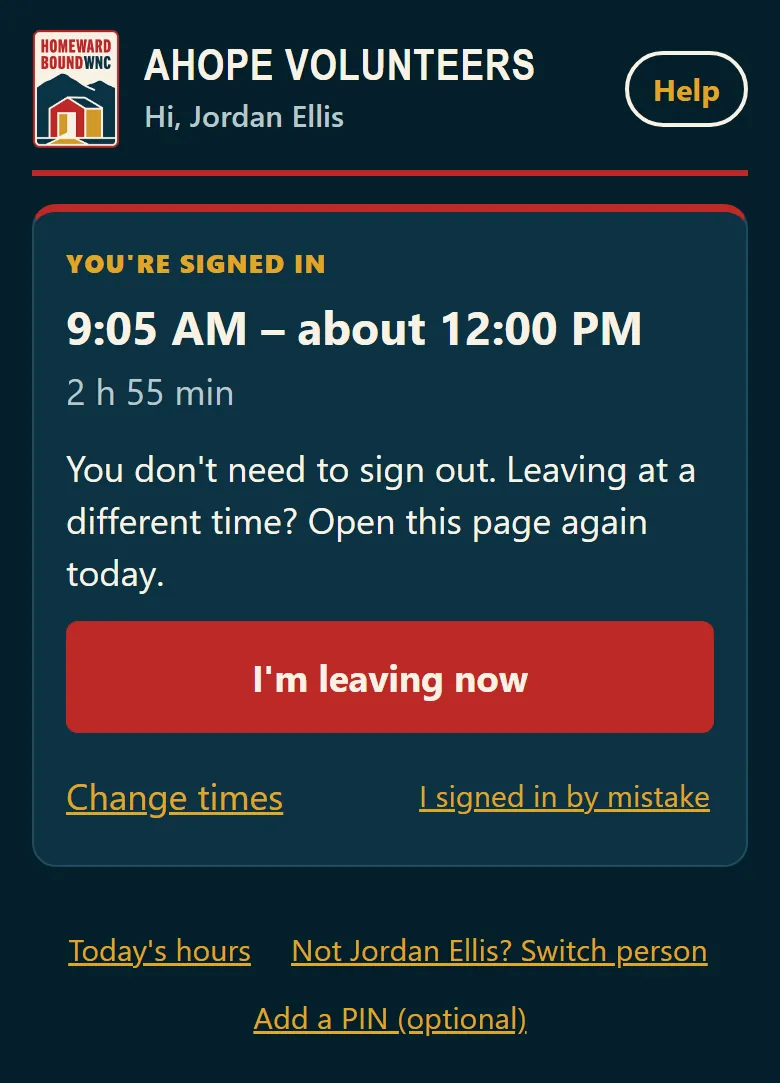
The page shows your times. You don't need to sign out.
Leaving earlier than you said? Open the page and tap I'm leaving now. Signed in by mistake? Tap I signed in by mistake.
4. Stayed later than you planned?
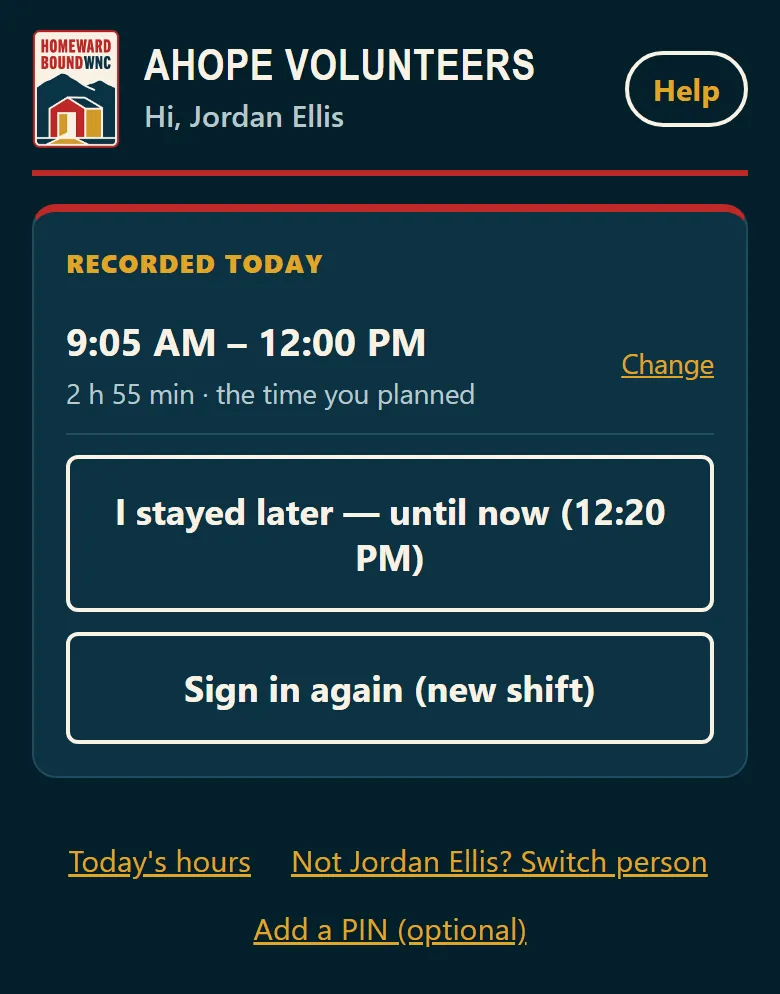
After your leaving time, open the page and tap I stayed later — until now. To fix a time by hand, see Fix today's hours below.
Back for another shift today? Tap Sign in again.
5. Fix today's hours
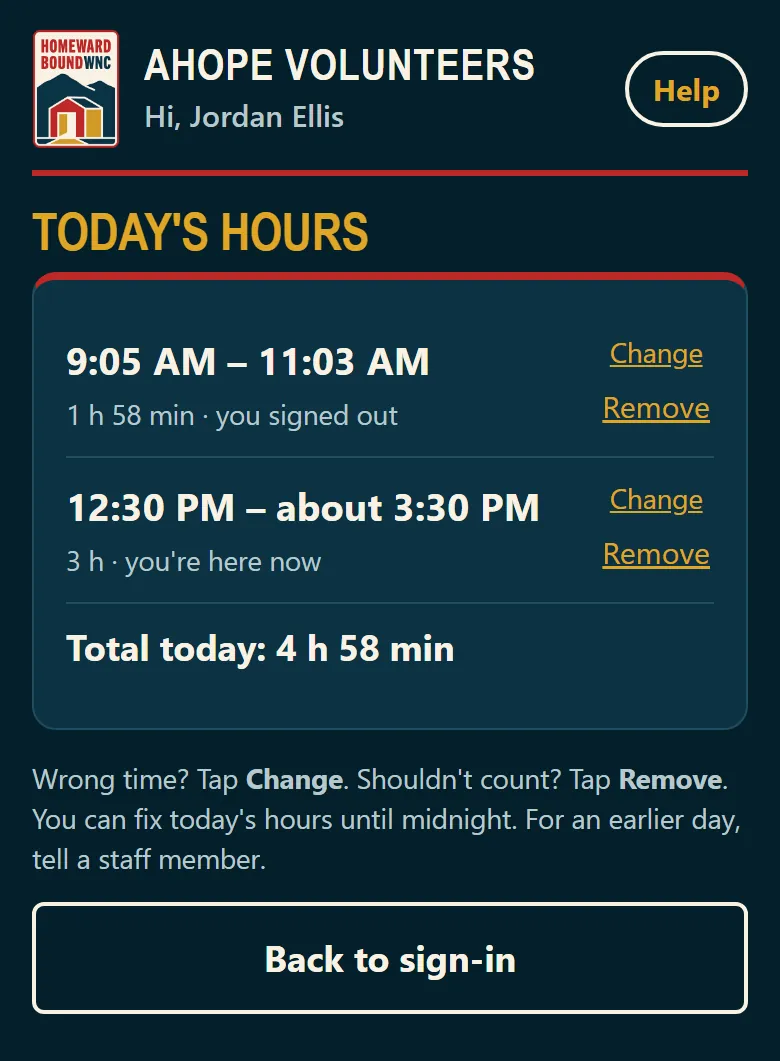
Made a mistake? Tap Today's hours at the bottom of the page to see everything recorded today. Tap Change to fix a time, or Remove for a visit that shouldn't count.
You can fix today's hours until midnight. For an earlier day, tell a staff member.
6. Forgot to sign in?
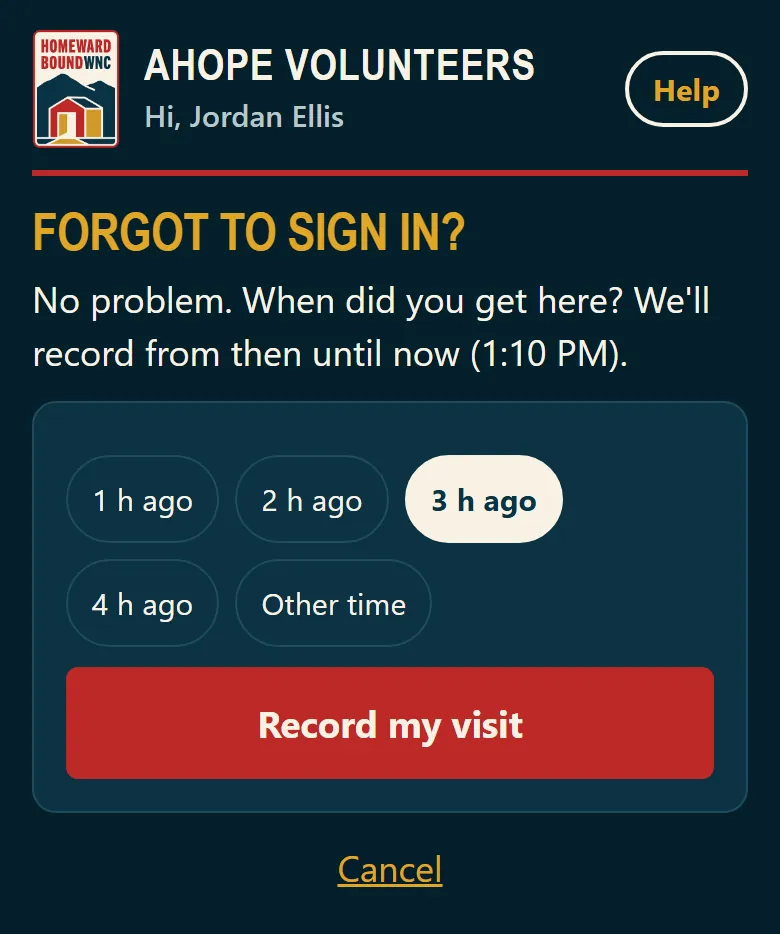
On your way out, open the page and tap Forgot to sign in? I'm leaving now. Pick when you got here, then tap Record my visit.
7. A PIN (optional)
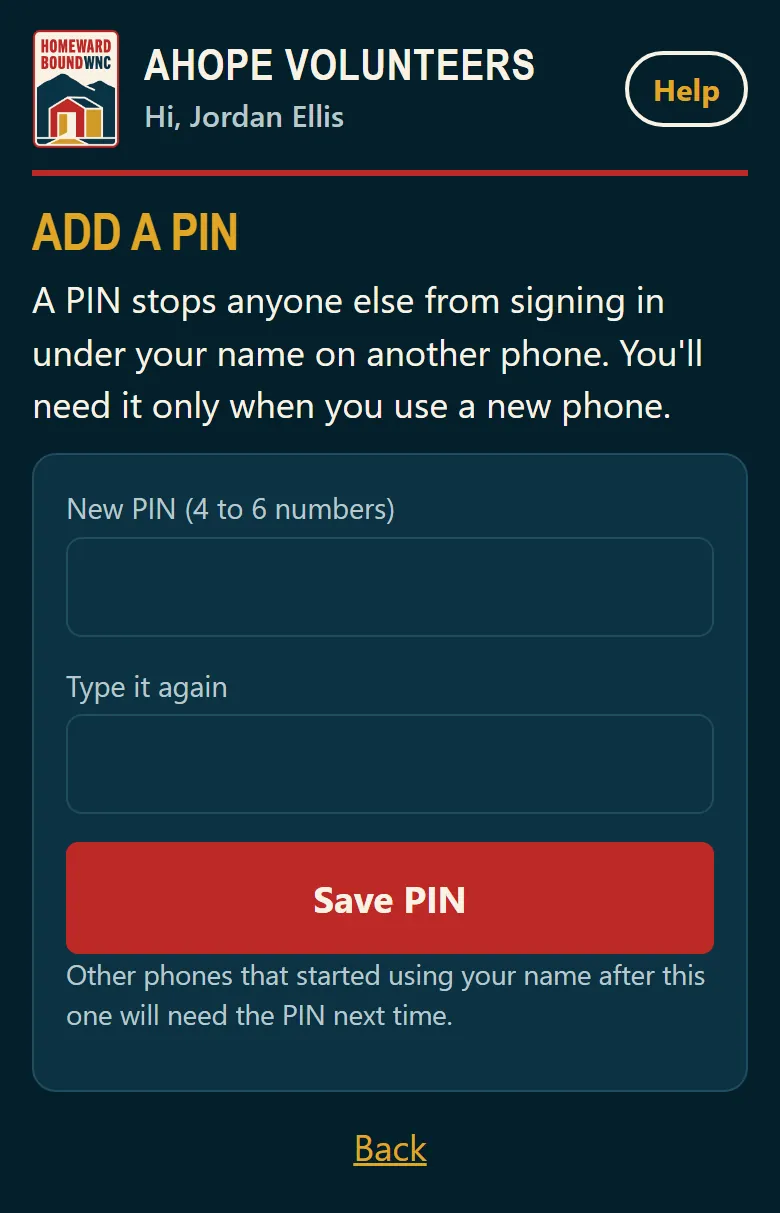
Anyone who knows your name could sign in as you. A PIN of 4 to 6 numbers stops that: once you add one, a new phone needs it. You won't need it on your own phone. Tap Add a PIN at the bottom of the page. Forgot it? Ask a staff member to reset it.
Put a page on your home screen
An icon on your phone's home screen opens a page in one tap. These steps work for any web page. The icon opens the page that's showing when you add it, so go to the page you want first. For sign-in, that's the sign-in page, not this Help page.
iPhone
- In Safari, tap Share, a square with an arrow pointing up. Don't see it? Tap the three dots next to the address bar or, if there are none, the button at the left of the address bar. Share is in that menu.
- Scroll down and tap Add to Home Screen. Not in the list? At the bottom, tap Edit Actions to add it.
- If you see Open as Web App, turn it off. The icon then opens in Safari, and the page still remembers you.
- Tap Add.
In Chrome on an iPhone, tap Share next to the address bar, then Add to Home Screen, then Add.
Android
- In Chrome, tap the three dots next to the address bar.
- Tap Add to Home screen. If your menu says Install and create shortcut instead, tap that, then Create shortcut.
- Tap Add. If it asks again, tap Add again.
In Samsung Internet, tap the three lines, then Add page to, then Home screen, then Add.
You can change the icon's name before you tap Add. If the icon ever asks for your name, type it the same way as always, and your PIN if you added one. Your hours are safe.
Other questions
- Sharing a phone? Tap Not (your name)? Switch person at the bottom of the page.
- New phone, or the page forgot you? Type your name again, and your PIN if you added one. Your hours are safe.
- Yesterday's times wrong? Tell a staff member. The page only changes today's.
- What's kept: your name and the times you volunteer.